> ## Documentation Index
> Fetch the complete documentation index at: https://docs.wondercraft.ai/llms.txt
> Use this file to discover all available pages before exploring further.
# Advanced Customization
> Start customizing voices and background music via the API
This section will guide will show you how to use Python to customize the generated audio with background music and different voices.
For any details about the API, please refer to the [API Reference](/api-reference).
This API is under rapid development. We are working hard to improve existing
functionality and add missing functionality and as such might need to drop
support for existing workflows. If you have any feature requests or concerns,
please contact [support@wondercraft.ai](mailto:support@wondercraft.ai)
## Using your own script
If you would prefer to provide your own script, you can use the `/podcast/scripted` endpoint instead. The payload for that request
looks slightly different. You will provide script segemnts, where each segment contains the text and the voice id for the
speaker.
```python theme={null}
API_BASE_URL = 'https://api.wondercraft.ai/v1'
headers = {
'x-api-key': API_KEY
}
voice_id_1 = ""
voice_id_2 = ""
script_payload = {
"script": [
{"text": "This is the first speaker", "voice_id": voice_id_1},
{"text": "And this the second speaker", "voice_id": voice_id_2},
{"text": "This is the first speaker again", "voice_id": voice_id_1},
{"text": "The first speaker likes to talk alot", "voice_id": voice_id_2},
{"text": "ha ha ha... ok I do", "voice_id": voice_id_1},
]
}
response = requests.post(API_BASE_URL + "/podcast/scripted", json=script_payload, headers=headers)
```
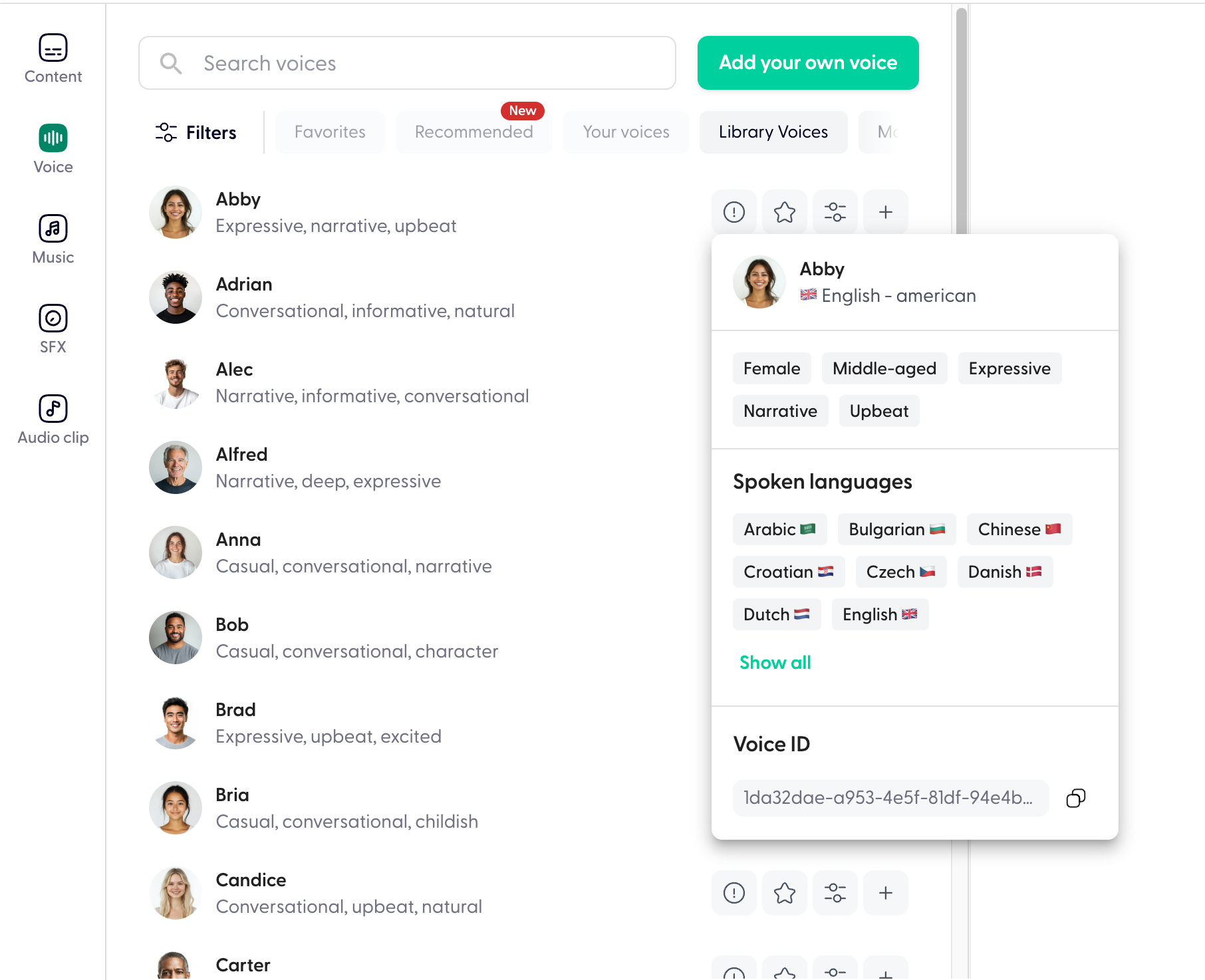
Voice IDs can be copied from the Wondercraft platform:
 ## Adding background music
This guide explains how to use the `music_spec` field in the `GenerateAiScriptedEpisodeRequest` to add
background music to podcast episodes.
The `music_spec` field is an optional component of the requests to `/podcast` and `/podcast/scripted`
that allows you to add a background music track to the generated podcast.
This field uses the `MusicTrackSpec` model, which provides fine-grained control over the music playback.
### Example music\_spec Configuration
Here’s an example of how to use the music\_spec field:
```json theme={null}
{
"music_spec": {
"music_id": "12345",
"fade_in_ms": 3000,
"fade_out_ms": 2000,
"playback_start": 5000,
"playback_end": 30000,
"volume": 0.05
}
}
```
### Parameters in MusicTrackSpec
1. `music_id` (Required)
* Description: The unique ID of the music track to use as background.
* Where to find it: Obtain the music\_id from the Wondercraft platform.
* Example: "music\_id": "12345"
2. `fade_in_ms` (Optional)
* Description: Specifies the duration (in milliseconds) for the music to fade in at the start.
* Default: 0 (no fade-in).
* Example: `"fade_in_ms": 3000` fades in the music over the first 3 seconds.
3. `fade_out_ms` (Optional)
* Description: Specifies the duration (in milliseconds) for the music to fade out at the end.
* Default: 0 (no fade-out).
* Example: `"fade_out_ms": 2000` fades out the music over the last 2 seconds.
4. `playback_start` (Optional)
* Description: The starting point (in milliseconds) of the music track to begin playback. This trims the beginning of the music track.
* Default: 0 (play from the beginning).
* Example: `"playback_start": 5000` starts the playback 5 seconds into the music track.
5. `playback_end` (Optional)
* Description: The point (in milliseconds) at which the music track stops playing. This trims the end of the music track.
* Default: Plays until the end of the music track or the length of the generated episode (whichever comes first).
* Example: `"playback_end": 30000` stops playback 30 seconds into the music track.
6. `volume` (Optional)
* Description: The music playback volume. Must be between 0.0 and 1.0
* Default: 0.05 (or 5%) - For most music tracks, this should be high enough.
* Example: `"volume": 0.01` - makes the volume of the music 1%
### Additional Notes
1. Automatic Trimming: The music track is automatically trimmed to match the duration of the generated podcast episode. If the episode is shorter than the music track, playback stops at the episode's end.
2. Music Placement: The music always starts at the beginning of the podcast and cannot be placed at other positions.
3. Dependencies: The music\_spec field is optional. If omitted, no background music will be added.
4. Validation: Ensure the music\_id is valid and that fade\_in\_ms, fade\_out\_ms, playback\_start, and playback\_end are within the bounds of the music track's duration.
Example Full Request
```json theme={null}
{
"prompt": "In this episode, we discuss the future of AI and its impact on the job market.",
"voice_ids": ["voice_1", "voice_2"],
"music_spec": {
"music_id": "c6a490a3-f404-4525-955b-e0baddeafb99",
"fade_in_ms": 3000,
"fade_out_ms": 2000,
"playback_start": 0,
"playback_end": 10000,
"volume": 0.01
}
}
```
This request:
* Adds background music with ID "c6a490a3-f404-4525-955b-e0baddeafb99".
* Fades in over 3 seconds, starts playback at the beginning of the track, and fades out over 2 seconds.
* Stops playback 10 seconds into the music or at the end of the podcast, whichever comes first.
* Sets the music volume to 1%
## Adding background music
This guide explains how to use the `music_spec` field in the `GenerateAiScriptedEpisodeRequest` to add
background music to podcast episodes.
The `music_spec` field is an optional component of the requests to `/podcast` and `/podcast/scripted`
that allows you to add a background music track to the generated podcast.
This field uses the `MusicTrackSpec` model, which provides fine-grained control over the music playback.
### Example music\_spec Configuration
Here’s an example of how to use the music\_spec field:
```json theme={null}
{
"music_spec": {
"music_id": "12345",
"fade_in_ms": 3000,
"fade_out_ms": 2000,
"playback_start": 5000,
"playback_end": 30000,
"volume": 0.05
}
}
```
### Parameters in MusicTrackSpec
1. `music_id` (Required)
* Description: The unique ID of the music track to use as background.
* Where to find it: Obtain the music\_id from the Wondercraft platform.
* Example: "music\_id": "12345"
2. `fade_in_ms` (Optional)
* Description: Specifies the duration (in milliseconds) for the music to fade in at the start.
* Default: 0 (no fade-in).
* Example: `"fade_in_ms": 3000` fades in the music over the first 3 seconds.
3. `fade_out_ms` (Optional)
* Description: Specifies the duration (in milliseconds) for the music to fade out at the end.
* Default: 0 (no fade-out).
* Example: `"fade_out_ms": 2000` fades out the music over the last 2 seconds.
4. `playback_start` (Optional)
* Description: The starting point (in milliseconds) of the music track to begin playback. This trims the beginning of the music track.
* Default: 0 (play from the beginning).
* Example: `"playback_start": 5000` starts the playback 5 seconds into the music track.
5. `playback_end` (Optional)
* Description: The point (in milliseconds) at which the music track stops playing. This trims the end of the music track.
* Default: Plays until the end of the music track or the length of the generated episode (whichever comes first).
* Example: `"playback_end": 30000` stops playback 30 seconds into the music track.
6. `volume` (Optional)
* Description: The music playback volume. Must be between 0.0 and 1.0
* Default: 0.05 (or 5%) - For most music tracks, this should be high enough.
* Example: `"volume": 0.01` - makes the volume of the music 1%
### Additional Notes
1. Automatic Trimming: The music track is automatically trimmed to match the duration of the generated podcast episode. If the episode is shorter than the music track, playback stops at the episode's end.
2. Music Placement: The music always starts at the beginning of the podcast and cannot be placed at other positions.
3. Dependencies: The music\_spec field is optional. If omitted, no background music will be added.
4. Validation: Ensure the music\_id is valid and that fade\_in\_ms, fade\_out\_ms, playback\_start, and playback\_end are within the bounds of the music track's duration.
Example Full Request
```json theme={null}
{
"prompt": "In this episode, we discuss the future of AI and its impact on the job market.",
"voice_ids": ["voice_1", "voice_2"],
"music_spec": {
"music_id": "c6a490a3-f404-4525-955b-e0baddeafb99",
"fade_in_ms": 3000,
"fade_out_ms": 2000,
"playback_start": 0,
"playback_end": 10000,
"volume": 0.01
}
}
```
This request:
* Adds background music with ID "c6a490a3-f404-4525-955b-e0baddeafb99".
* Fades in over 3 seconds, starts playback at the beginning of the track, and fades out over 2 seconds.
* Stops playback 10 seconds into the music or at the end of the podcast, whichever comes first.
* Sets the music volume to 1%